 Dovio
All help articles
Bringing your contacts and companies into Dovio
Have every customer in Dovio on your first day.
Updated 25 October 2026
- All plans
- Everyone; some steps need an admin
Updated 25 October 2026
Your team can work from the same customers and contacts from day one, without anyone typing them in one by one. Say Brightwater Studio keeps its customers and their contacts in a spreadsheet. Sarah Mills brings it into Dovio, and turns on automatic contacts, so everyone the team emails or meets from then on is added as they work.
With their email addresses in Dovio, each contact's page also shows the emails you've already exchanged with them, once you connect your mailbox. See Connecting your email and calendar.
Deciding which approach to use
Most teams use more than one approach.
| What you have | Use | Why |
|---|---|---|
| A whole CRM to move, or a large or messy file | Getting help from the Dovio team | They plan and bring in your data with you |
| A spreadsheet or CSV file, and Claude or ChatGPT | Importing it with your AI assistant | It adds fields you're missing, links contacts to their companies and updates people already in Dovio |
| A small spreadsheet | Copying the rows and pasting them into a Dovio table | Many rows at once, no AI assistant needed |
| People you email and meet | Automatic contacts | Dovio adds them as you work, linked to their company |
| A short list, like the people you met at a trade fair | Ask Dovio | It checks who's already in Dovio and links each company for you |
Deals and your own objects, like projects, come in the same way as contacts. Custom objects are on the Pro plan.
Bring in your spreadsheet first. If you're moving from another CRM or have a large file, we recommend letting the Dovio team help. If you use Claude or ChatGPT, you can import it there. You can also paste a small spreadsheet, companies before contacts. Then turn on automatic contacts. Dovio then reuses the contacts you brought in instead of adding them again, and links new people to the companies you brought in.
Cleaning up your spreadsheet
Every row becomes a record your whole team sees, so clean up the file before you bring it in, whichever way you choose. Remove newsletters, no-reply addresses, colleagues, test rows, duplicates and people you'll never contact again. Noise is quicker to delete from a spreadsheet than from Dovio. Give each company its website domain, like northlight.example.com, so automatic contacts can link the people you email there to it.
Getting help from the Dovio team
Say Brightwater Studio is moving from another CRM with a few thousand contacts, old deals and columns nobody remembers the meaning of. Instead of working through it yourself, you can hand it to the Dovio team.
To get help, reach out to support@dovio.io and the team takes it from there. It's free on every plan.
The team knows Dovio's fields, links and lists inside out. They help you decide which columns to keep and which fields to add, clean out duplicates and noise, and bring everything in with contacts linked to their companies. You start with tidy data instead of fixing it afterwards, and your team can get on with selling meanwhile.
Importing a spreadsheet with Claude or ChatGPT
Say Sarah has her customers in a CSV file, with a column Dovio doesn't have yet, like Lead source. If you use Claude or ChatGPT, it can read the file and do the matching for you. First, connect Dovio to it.
To import the file, start a chat in Claude or ChatGPT, attach the file and say what you want, for example Add the companies and contacts in this file to Dovio, link each contact to their company and put them in a list called Imported from old CRM.
The assistant compares your columns with Dovio's fields and suggests a field for each one that's missing, like Lead source. Only admins and the workspace owner can add fields. It then adds the companies and contacts and links each contact to their company. Dovio doesn't allow two contacts with the same email address, so a contact who's already in Dovio is updated instead of added twice. Putting them in a list lets your team find everything that came from the file in one place.
There's no approval step in Dovio itself, so Dovio asks the assistant to check with you in the chat before it adds or changes anything. This doesn't use your workspace's AI credits. Dovio takes about 30 changes a minute from each person, so 300 contacts take at least 10 minutes, and adding them to a list takes as long again.
Preparing your spreadsheet for pasting
Pasting means copying rows in Excel or Google Sheets and pasting them straight into a table in Dovio, the way you'd paste between two spreadsheets. It fills the Dovio table from left to right, one spreadsheet column per table column. Tidy the spreadsheet first, and every cell lands where it belongs.
To see the order to follow, open Contacts or Companies from the sidebar and look at the table's columns, starting with the name. Then prepare your spreadsheet like this:
- Put your columns in the same order as the table, and add an empty column for each one you don't fill. In All Contacts, for example, that's Contact Name, two empty columns for Company and Deals, then Job Title, Email and Phone.
- Leave linked records and Owner empty. Columns that link to another record, like Company on a contact, don't take text from a spreadsheet, and neither does Owner. Link and assign them after pasting.
- Use options the field already has. A choice field like Job Title only takes its own options, whatever the capitalization (ceo works for CEO). In a new workspace, Job Title has CEO, CTO and CFO, so add the titles you use first. Only admins and the workspace owner can add options.
- Write phone numbers with the country code, like +1 503 555 0142.
- Put several email addresses in one cell with commas between them. Domains work the same way.
For example, Sarah's contacts look like this in her spreadsheet, ready to paste into All Contacts:
| Contact Name | Company | Deals | Job Title | Phone | |
|---|---|---|---|---|---|
| Emma Hughes | Head of Marketing | emma.hughes@northlight.example.com | +1 503 555 0142 | ||
| Mark Ellis | CFO | mark.ellis@northlight.example.com | +1 503 555 0143 |
Deals paste into All Deals, since Pipeline is a Kanban board. In a deals spreadsheet:
- Stage only takes the stages you have, like Lead or Won.
- Value takes a plain number in your workspace's currency, like 12000. An amount in another currency is left empty.
- Dates take the form year-month-day, like 2026-03-31, so Dovio doesn't mix up the day and the month.
- Company and Contact Person stay empty. Link them after pasting, as for contacts.
Pasting companies and contacts
Paste your companies first, then your contacts, so the companies are there when you link people to them. Pasting works on a computer, not on a phone.
Start with two or three rows, and check that every cell landed in the right column before you paste the rest. Then paste about 20 rows at a time, a minute apart. Dovio saves a limited number of changes from each person per minute, so a larger paste can leave some rows half empty.
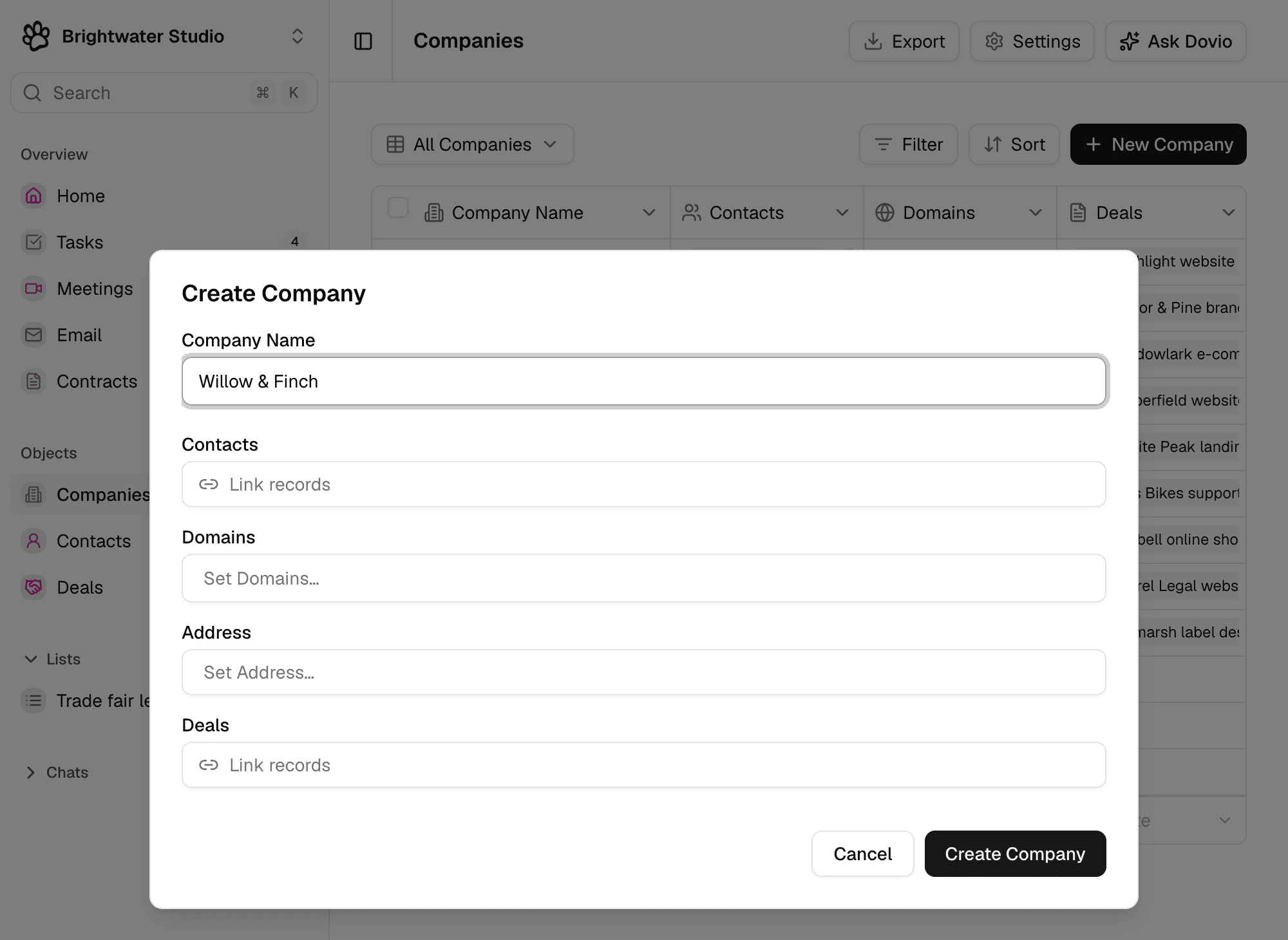
Say Sarah starts with her three newest customers, Willow & Finch, Bramble Bakery and Lakeside Physio.
- Click Companies in the sidebar and stay in All Companies, or another view with no filter or sort, so the company you create in steps 2 and 3 is the last row.
- Click New Company and enter the first company's name from your spreadsheet.
- Click Create Company.
- In your spreadsheet, copy the rows you want, without the header row.
- In Dovio, click the empty space next to the new company's name, in the last row of the table. Clicking the name itself opens the company's page.
- Press
⌘ V(Ctrl Von Windows). - In Do you want to add more rows?, keep Create new rows and click Continue.
Dovio adds a company for each row, starting with the one you created, and shows how many cells it pasted.
Then paste your contacts the same way. Open Contacts from the sidebar and start with New Contact.
Linking pasted contacts to their companies
Pasted contacts aren't linked to their company, even when their email domain matches, so the company's page doesn't show them yet. Turning on automatic contacts doesn't link them either. It only links the people it adds itself.
- Click Contacts in the sidebar.
- Double-click the contact's Company cell.
- Choose the company.
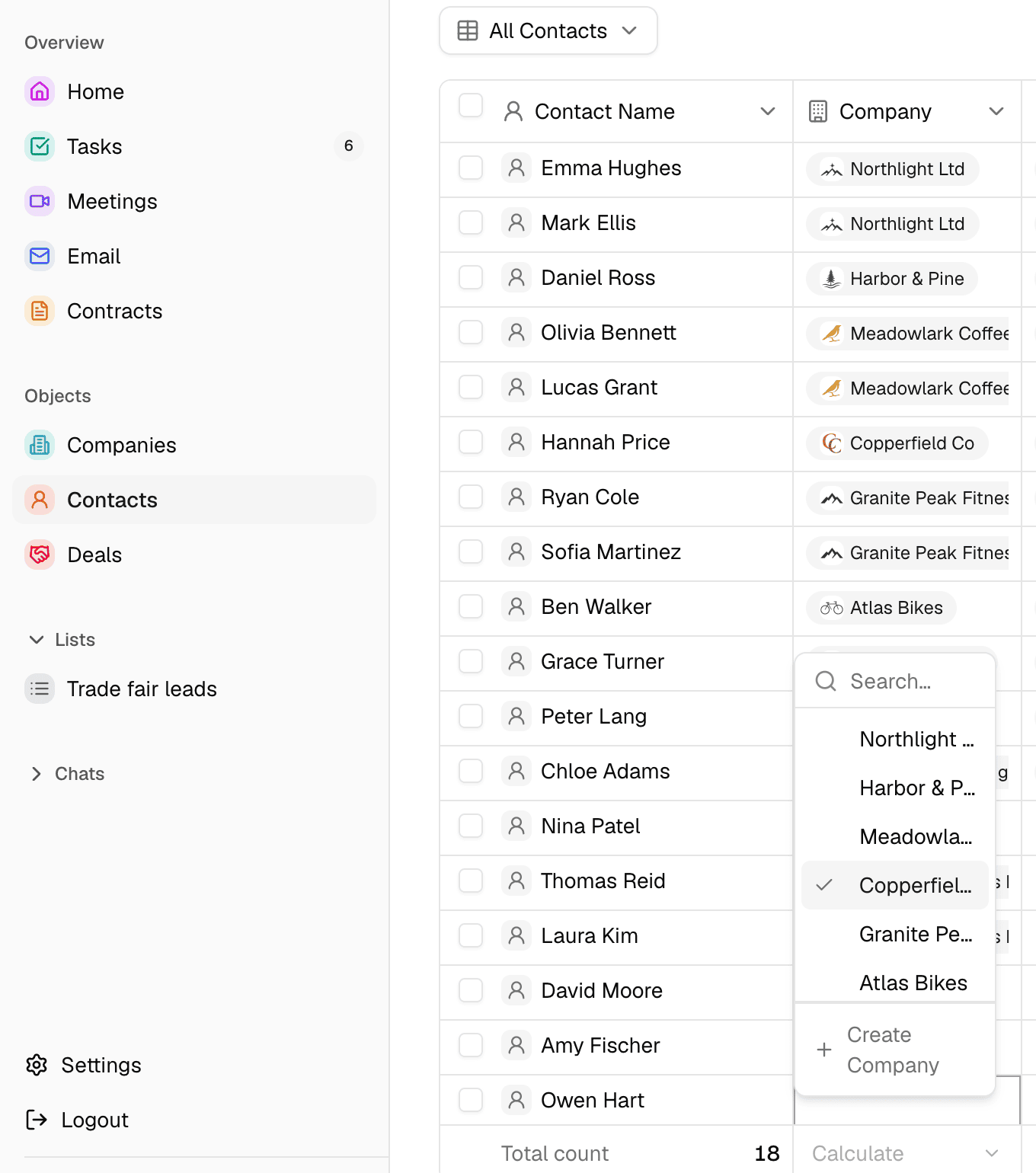
The contact then shows on the company's page.
Ask Dovio can also link several contacts at once, like "Link Emma Hughes and Mark Ellis to Northlight Ltd". This uses your workspace's AI credits. See Using Ask Dovio.
Adding the people you email and meet
Once your spreadsheet is in, turn on automatic contacts, and Dovio adds the people your team emails and meets as contacts, each linked to their company.
Only admins and the workspace owner can turn on automatic contacts. See Creating contacts and companies automatically.
Adding a few at a time with Ask Dovio
Say Priya met three new people at a trade fair, and has their names, email addresses and companies in a note on her phone. Ask Dovio can add them, with their companies, from the list as she wrote it.
- Click Ask Dovio at the top right of the page.
- Describe the people, or paste the list. For example, write "Add these people as contacts and link them to their companies", followed by the list.
- On the card Create 3 contacts?, untick anyone you don't want.
- Click Create 3 contacts, where the number is how many are still ticked.
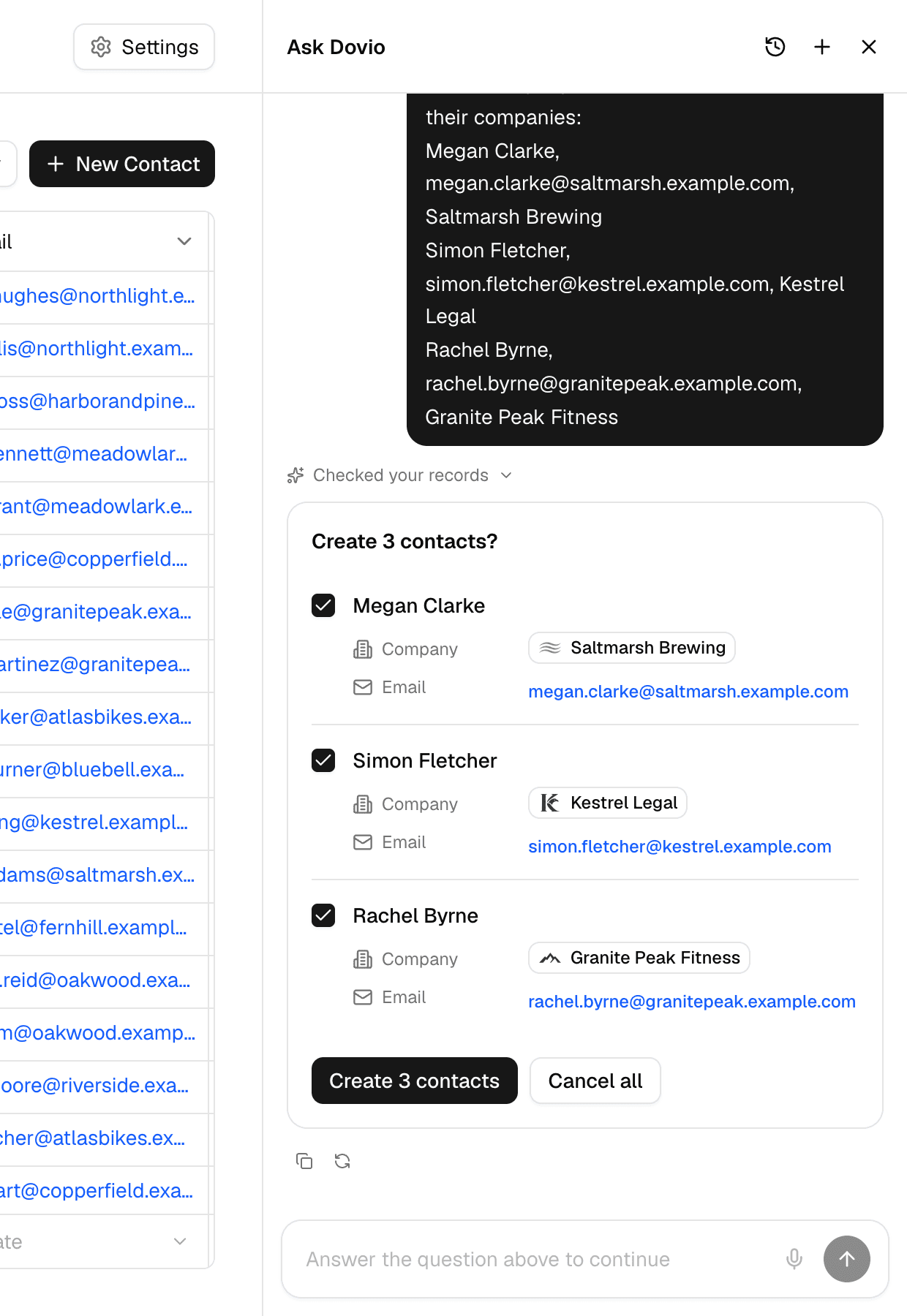
Ask Dovio checks that each person isn't in Dovio already, and adds any company that's missing. Nothing is added until you click Create 3 contacts. See Using Ask Dovio.
Ask Dovio uses your workspace's AI credits, and a longer list uses more. For more than a handful of people, import or paste them instead. See Importing a spreadsheet with Claude or ChatGPT and AI credits and meeting hours.
Checking what came in
Before your team starts working in Dovio, check that everything arrived. In each table:
- Total count at the bottom of the name column shows how many records there are. Compare it with the rows in your spreadsheet.
- Filter by an empty Email or Phone to find details that didn't come in.
- Filter by an empty Owner to give records without an owner one.
See Filtering records. To remove a record that came in wrong, delete it.
Frequently asked questions
Yes. Dovio has no import button of its own and doesn't connect to other CRMs, so export your data from the other CRM to a file first. Then email support@dovio.io and the Dovio team can help, import it with Claude or ChatGPT connected to Dovio, or paste the rows from Excel or Google Sheets. See Getting help from the Dovio team.
Some cells didn't fit their column, so Dovio left them empty and pasted the rest. Trying again doesn't help. The usual causes are an option the field doesn't have, a phone number without its country code, or a name in Company or Owner. Fix those cells by hand.
Pasting doesn't check. If the email address is already used, Dovio shows that it's "already used by another record", and the new row stays without the address. Delete the extra row. An import with Claude or ChatGPT updates the contact that's already there, and automatic contacts and Ask Dovio check before they add anyone.
No. Automatic contacts only add people from emails and meetings after you turn them on. See Creating contacts and companies automatically.
Related articles
Was this article helpful?
Still stuck? Email us at support@dovio.io and tell us what you tried.